 ACF-powered content

MenuNest is a free WordPress plugin that makes the classic menu screen fast enough for big menus. It adds new items straight under the parent you choose instead of at the bottom, lets you paste a whole list of items at once, and backs up every menu save so you can restore it in one click. It also exports a menu and imports it on another site, with a preview before anything is created. The current version is 1.1.0, tested up to WordPress 7.1. Version 1.1.0 adds a search to the plus button, so you can add WooCommerce products, product categories and pages right under any item.
We built MenuNest because building large menus in WordPress means endless dragging, and one wrong drop can break the whole navigation. This guide shows what it adds to Appearance > Menus, how to install it, and how to use each tool, step by step.
Why the WordPress menu screen gets slow
The classic menu editor always adds new items at the very bottom of the menu. On a small menu that is fine. On a store with dozens of product categories, or a site with a mega menu, every new item means dragging it up the list and then to the right, under its parent, one at a time. One wrong drop can move a whole branch.
The screen also has no search, no undo after you save, and no way to move a menu to another site except rebuilding it by hand. Our longer guide on managing WordPress menus on large sites covers those limits in detail. MenuNest answers them inside the same screen, so there is nothing new to learn.
| Problem on a big menu | What MenuNest adds |
|---|---|
| New items land at the bottom | Add new items under any parent, already nested |
| Adding 40 items one by one | Bulk add from a pasted list, with a preview |
| Finding one item in hundreds | Search with jump to match, and collapse or expand branches |
| A save you regret | Automatic backup on every save, one-click restore |
| Moving a menu to a new site | Export and import with matching, mapping and warnings |
| "Who changed the menu?" | A history log of every import, export, backup and restore |
How to install MenuNest
MenuNest is in the official WordPress plugin directory, so you install and update it from the Plugins screen.
- Plugins > Add New
- Search "MenuNest"
- Install Now
- Activate
- Open Appearance > Menus
- In your WordPress admin, go to Plugins > Add New.
- Search for MenuNest, click Install Now, then Activate.
- Open Appearance > Menus. Read the short backup notice and click Continue.
- Find backups, import, export, history and settings under Appearance > MenuNest.
You need WordPress 6.7 or newer and PHP 7.4 or newer. MenuNest loads only on Appearance > Menus and its own screen, and it adds no database tables.
Add items under a parent, without dragging
This is the feature most people install MenuNest for.
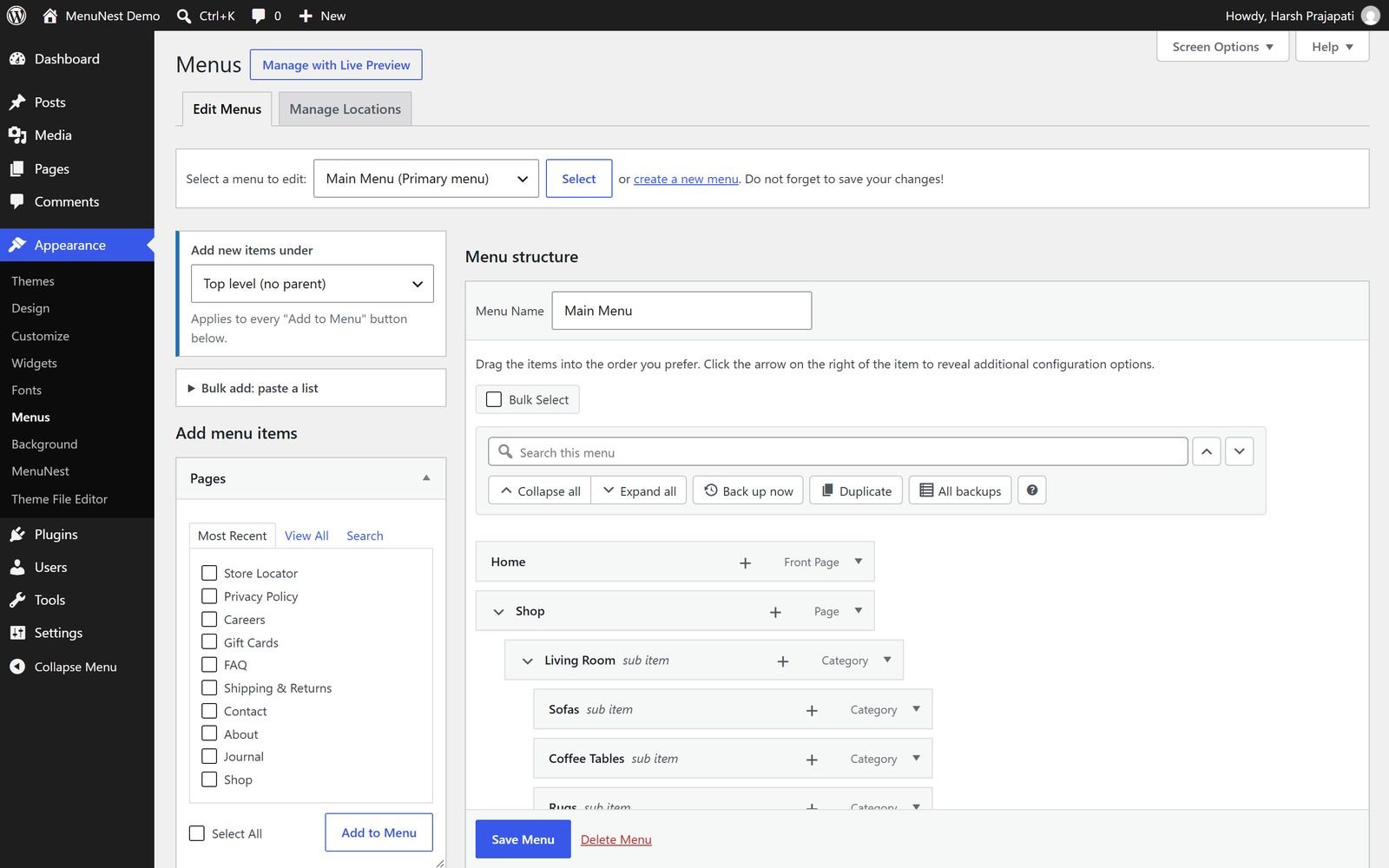
- Open Appearance > Menus and choose your menu.
- In the MenuNest bar, pick the parent item, for example "Shop".
- Use any Add to Menu button as usual: custom links, pages, posts, categories or WooCommerce product categories.
- The new items appear straight under "Shop", already nested.
- Click Save Menu when you are happy.
Add a product, category or page from the plus button
New in version 1.1.0, and the most requested change from our users: the plus button on each menu item can now find any content on your site, including WooCommerce products and product categories.
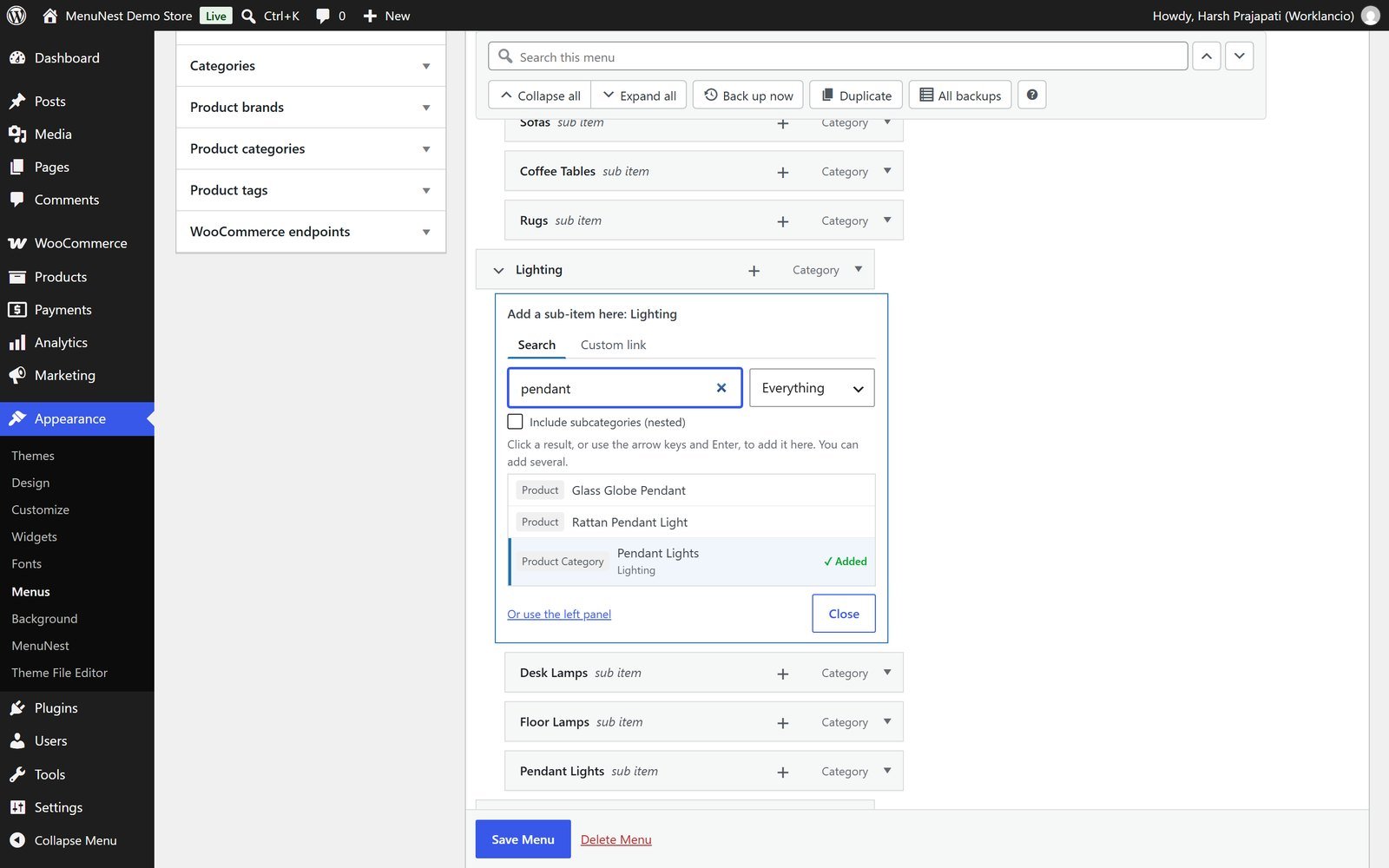
- Click the + on the item you want to add under, for example "Lighting".
- Type a few letters, for example "pendant". Results show their type, such as Product or Product Category, and subcategories show their parent.
- Click a result, or use the arrow keys and Enter. It is added right under "Lighting" as a real menu item, so it keeps following the product if you rename it.
- Add as many as you like: the form stays open and ticks each one you added.
Use Search in to look only at products, product categories, pages or any other type. Tick Include subcategories to add a category together with its whole tree, already nested. For a link that is not on your site, switch to the Custom link tab, type the text and address, and press Enter.
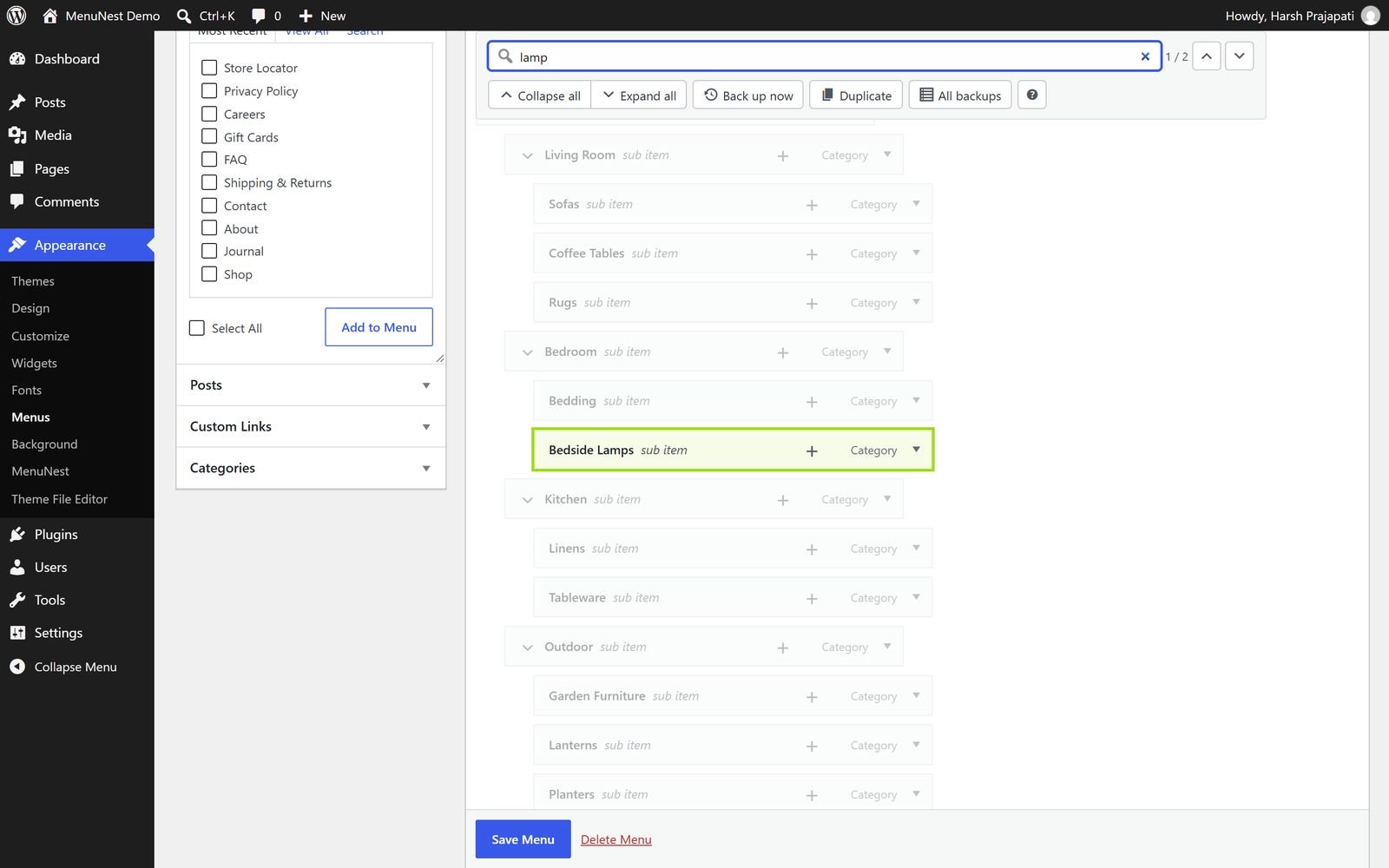
On long menus, collapse or expand any branch, or the whole menu at once, and search the menu to jump between matches.
Bulk add a whole list at once
When a client sends 30 menu items in an email, you do not need to add them one by one. Bulk add turns a pasted list into menu items.
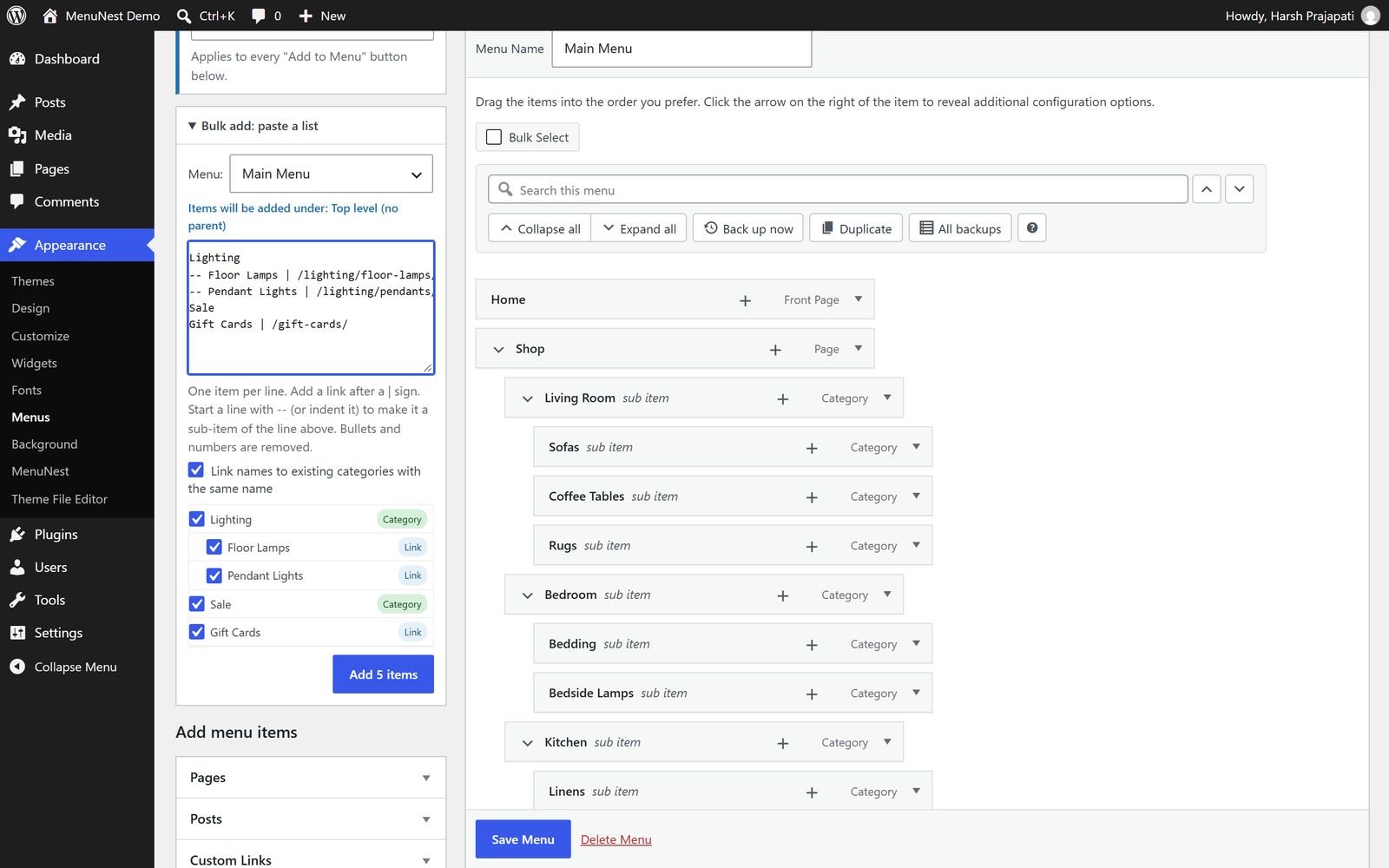
The format is one item per line:
Wall Art | https://example.com/wall-art
Prints
  Framed prints
  Canvas prints
-- Posters
Gift Cards- Put a link after a
|sign. - Indent a line with spaces or a tab, or start it with
--, to make it a sub-item of the line above. - Bullets and numbers are removed for you.
- A line without a link is linked to a category with the same name if one exists, otherwise it gets
#.
You see a preview first, untick anything you do not need, and add the rest in one click. To add a category with all its subcategories, tick one category and MenuNest adds its whole tree, already nested. That is a big time saver on WooCommerce stores with deep category trees. For bigger store changes, see our WooCommerce development service.
Backups, restore and undo
Menus break quietly. Someone saves the wrong change, and the main navigation is gone before anyone notices. MenuNest keeps copies so you can always go back.
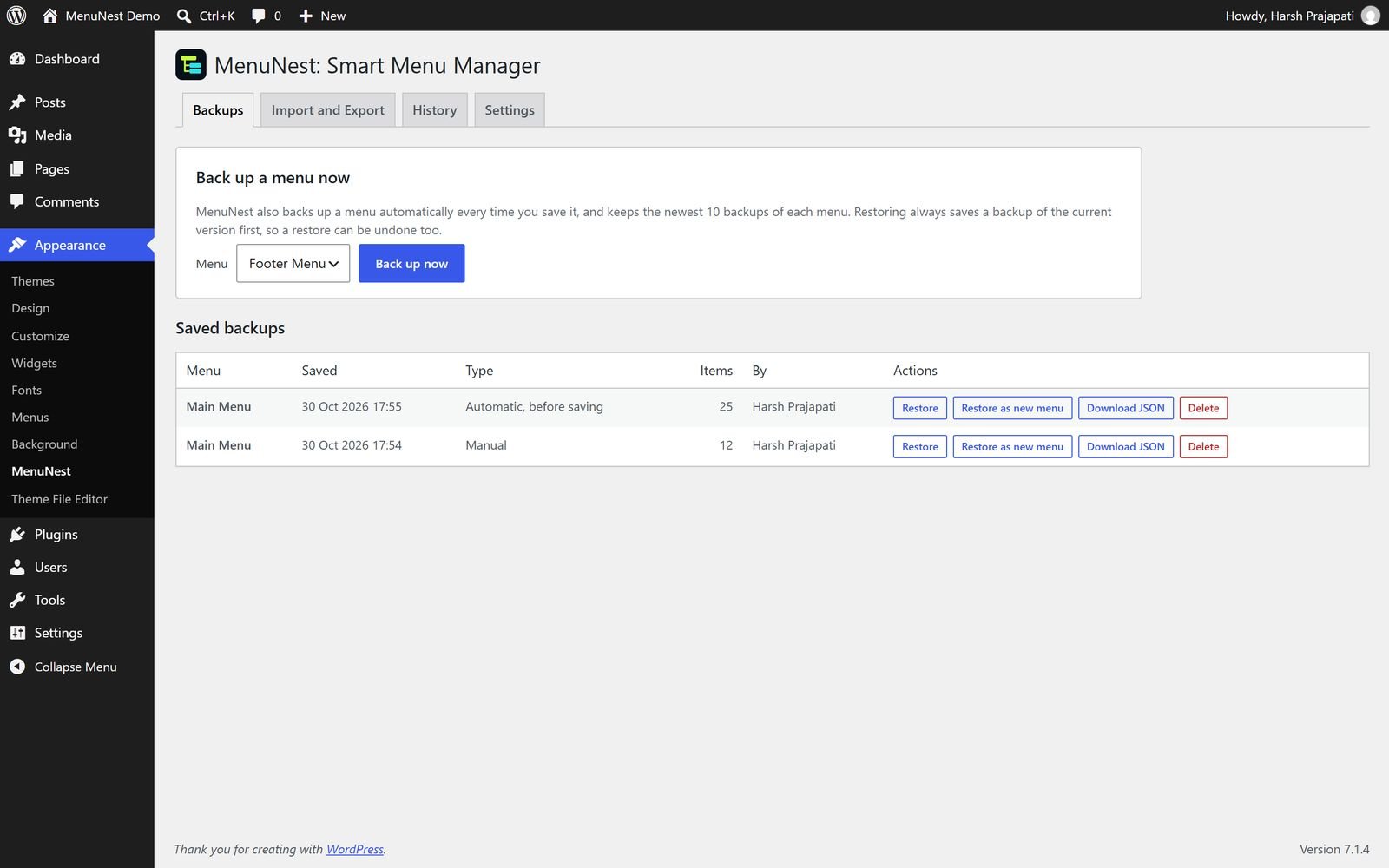
- Automatic backups every time you save a menu, skipped when nothing changed.
- Back up now with one click from the Menus screen.
- One-click restore, into the same menu or as a new menu. The current version is backed up first, so even a restore can be undone.
- Download any backup as a JSON file, and choose how many backups to keep per menu.
Backups live in your own WordPress database as private entries, and nothing is sent anywhere. To undo a mistake after saving, go to Appearance > MenuNest > Backups and click Restore next to the version you want. For the bigger picture of protecting a whole site, see our website backup and disaster recovery plan.
Move a menu to another site
Rebuilding a large menu on a staging or client site by hand is slow and easy to get wrong. MenuNest exports any menu as a JSON file, including extra item settings from your theme and plugins, and imports it on another site.
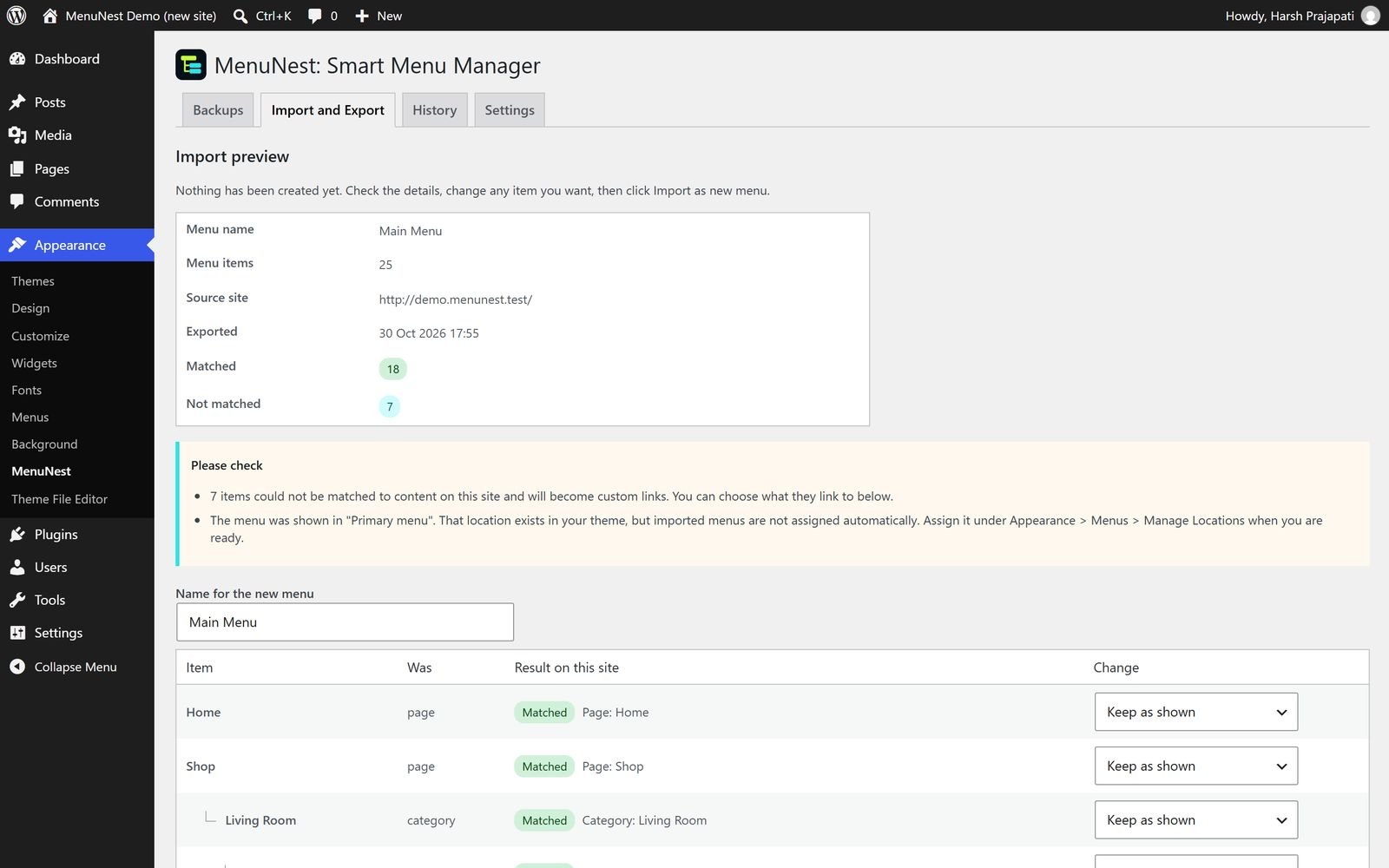
Before anything is created, the import preview shows the menu name, the number of items, the source site, the export date and which items matched. Pages, posts and categories are matched by their web address (the slug, the last part of a page's link), so links point to the right content on the new site, and links to the old site are updated to the new address. You can choose what any item should link to right in the preview, and clear warnings flag missing content types and items that become custom links. Imports always create a new menu, so your existing menus are never changed.
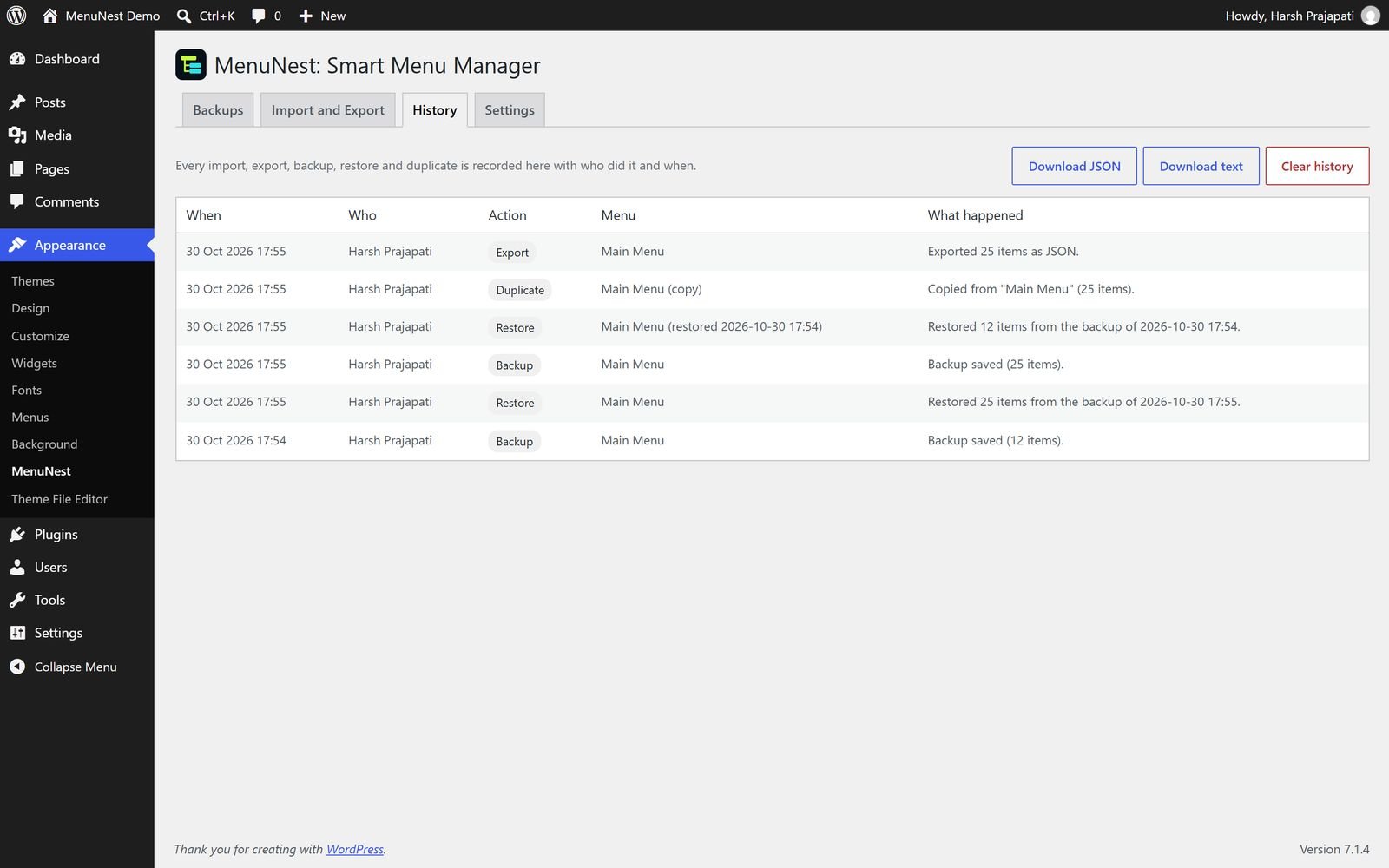
Every import, export, backup, restore and duplicate is written to a history log with who did it and when, and you can download the log as JSON or plain text.
Built the WordPress way
MenuNest uses the native WordPress admin design, with no page builder, no external service and no tracking. It is translation ready, tested with 172 automated tests on PHP 7.4 to 8.4, and checked with PHPStan level 8 and the WordPress Coding Standards. Nothing changes on your site until you click Save Menu, exactly as before.
If you need menu behaviour beyond this, such as a custom mega menu or a navigation that follows your own content rules, that is a job for WordPress plugin development. If you like MenuNest, try our two other free plugins: BoxMetric, a moving volume calculator for movers, and FieldPilot, which builds ACF field groups from JSON.
Frequently asked questions
Will MenuNest change my live menu by itself?
No. The tools work inside the Menus screen, and changes go live only when you click Save Menu, exactly as before. Imports create a new menu that is not shown anywhere until you assign it to a location.
Does it work with WooCommerce?
Yes. Since version 1.1.0 the plus button on any menu item searches WooCommerce products and product categories and adds the one you click right under that item. The add under parent tool also works with every Add to Menu button, and you can add a product category with all its subcategories in one step.
Can I import menus exported by other plugins?
Not in this version. MenuNest imports files exported by MenuNest, which is what lets it show the full preview and match pages, posts and categories by address.
What happens to my data if I delete MenuNest?
By default backups and history are kept, in case you reinstall. Turn on "Remove data" in Appearance > MenuNest > Settings to delete them with the plugin. Your menus themselves are never touched.
Sources
The facts in this article were checked against these pages, last reviewed 17 November 2026.
- MenuNest: Smart Menu Manager, WordPress.orgwordpress.org/plugins/menunest-smart-menu-manager/
- MenuNest source code, GitHubgithub.com/xaviermsd/menunest-smart-menu-manager
- Appearance Menus screen, WordPress Documentationwordpress.org/documentation/article/appearance-menus-screen/
- Navigation Menus, WordPress Theme Handbookdeveloper.wordpress.org/themes/functionality/navigation-menus/