 ACF-powered content

FieldPilot is a free WordPress plugin that builds and changes Advanced Custom Fields (ACF) field groups from JSON. You queue the fields you want, copy a ready prompt that carries your real field names, paste your AI's reply back, and see exactly what will change before anything is written. Only what the JSON asked for changes, and every change can be rolled back.
It is for developers and site builders who use ACF. We built FieldPilot because building big ACF field groups by hand is slow and easy to get wrong, while many developers already use an AI that writes JSON well. The missing piece was applying that JSON safely. The current version is 1.1.0, tested up to WordPress 7.1. This guide covers what FieldPilot does, how to install it and the workflow from first prompt to rollback.
The problem with building ACF fields by hand
Advanced Custom Fields is a popular way to add structured content to WordPress, but authoring fields still means clicking through a form, one field and one setting at a time. A real estate listing or a course page can need dozens of fields with repeaters and conditional logic. That takes a long time, and one wrong click can change a field key that existing content depends on.
ACF's own JSON import helps, but it replaces a whole field group. FieldPilot works at a finer level, and it is built around one rule: nothing changes except what the JSON asked for. Set one field to required, and that is the only setting that changes. Instructions, conditional logic, wrapper classes, field keys and every other field stay as they were, and FieldPilot checks that after every write.
If you are still choosing how to structure content, our comparison of ACF and Gutenberg blocks explains when each fits.
| Task | ACF on its own | With FieldPilot |
|---|---|---|
| Create 30 fields | Click through each field form | Describe them once, paste the JSON |
| Change one setting | Edit by hand, or re-import the whole group | A partial update to just that setting |
| See what will change | Re-import the whole group, then check it by eye | A diff of every addition, removal and setting |
| Undo a change | Restore a backup or fix by hand | Roll back from History, newest first |
| Rename a field with content | Easy to orphan data | Stops and explains the trade-offs |
How to install FieldPilot
FieldPilot is in the official WordPress plugin directory. ACF must already be installed and active.
- Plugins > Add New
- Search "FieldPilot"
- Install Now
- Activate
- Open FieldPilot
- In your WordPress admin, go to Plugins > Add New.
- Search for FieldPilot, click Install Now, then Activate.
- Open FieldPilot in the admin menu. A 10 step guided tour walks you through the Dashboard, Import and History screens.
You need WordPress 6.5 or newer, PHP 8.1 or newer and ACF 6.2 or newer, free or PRO. Repeater, Flexible Content, Clone and Gallery need ACF PRO, and FieldPilot shows them disabled on a free install with the reason.
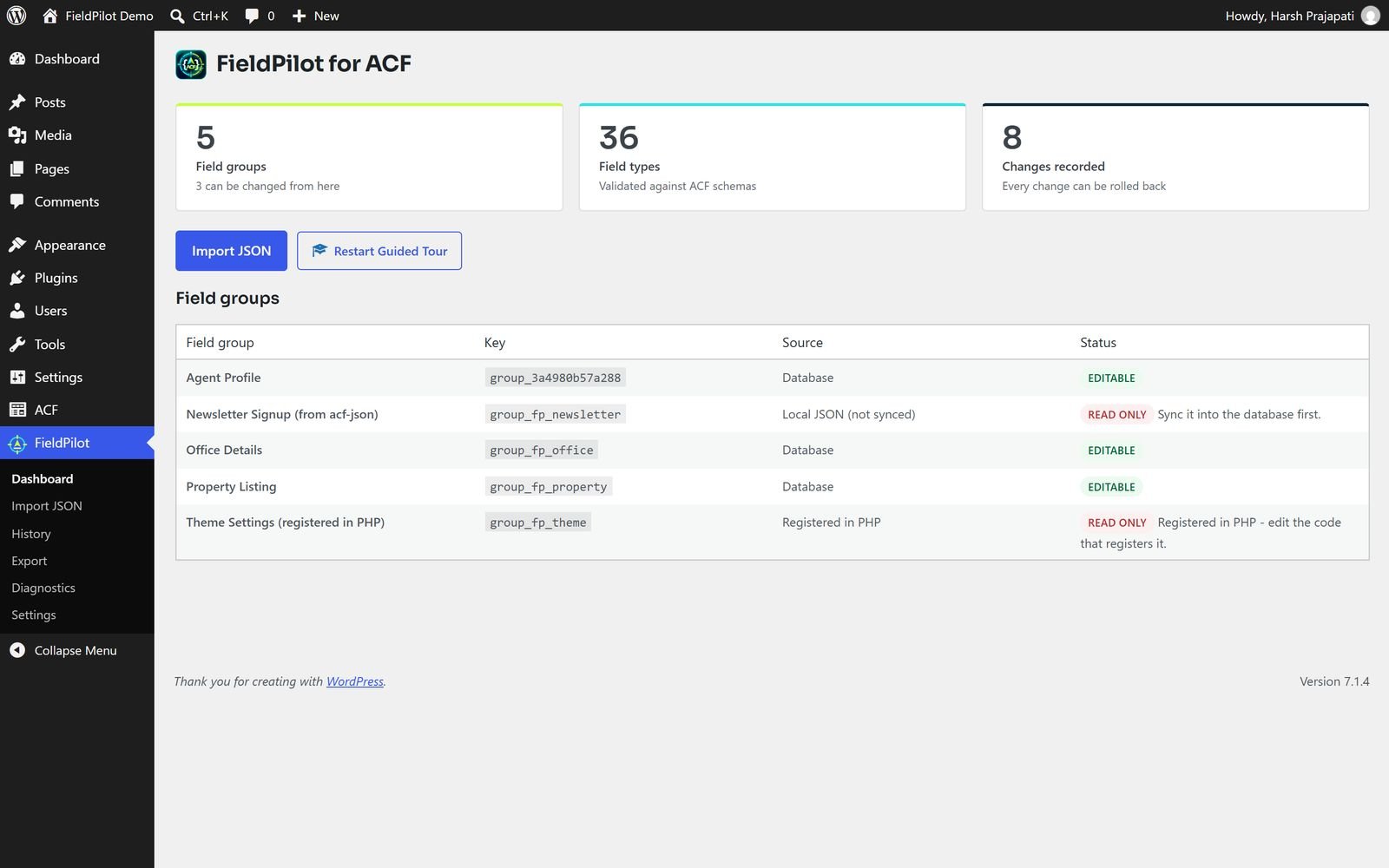
Step by step: from prompt to applied fields
The whole workflow happens on the Import screen.
1. Pick or create a field group
Choose an existing field group in the Target Field Group bar, or click Add New Field Group, enter a title and click Create & Select. The new group is recorded in History like any other change, so you can roll it back.
2. Queue the fields you want
Use the custom field builder. Pick a field type, fill in the common settings from ACF's four tabs (General, Validation, Presentation and Conditional Logic) and queue as many fields as you like. FieldPilot offers all 36 field types on ACF PRO and the 32 free ones on ACF free.
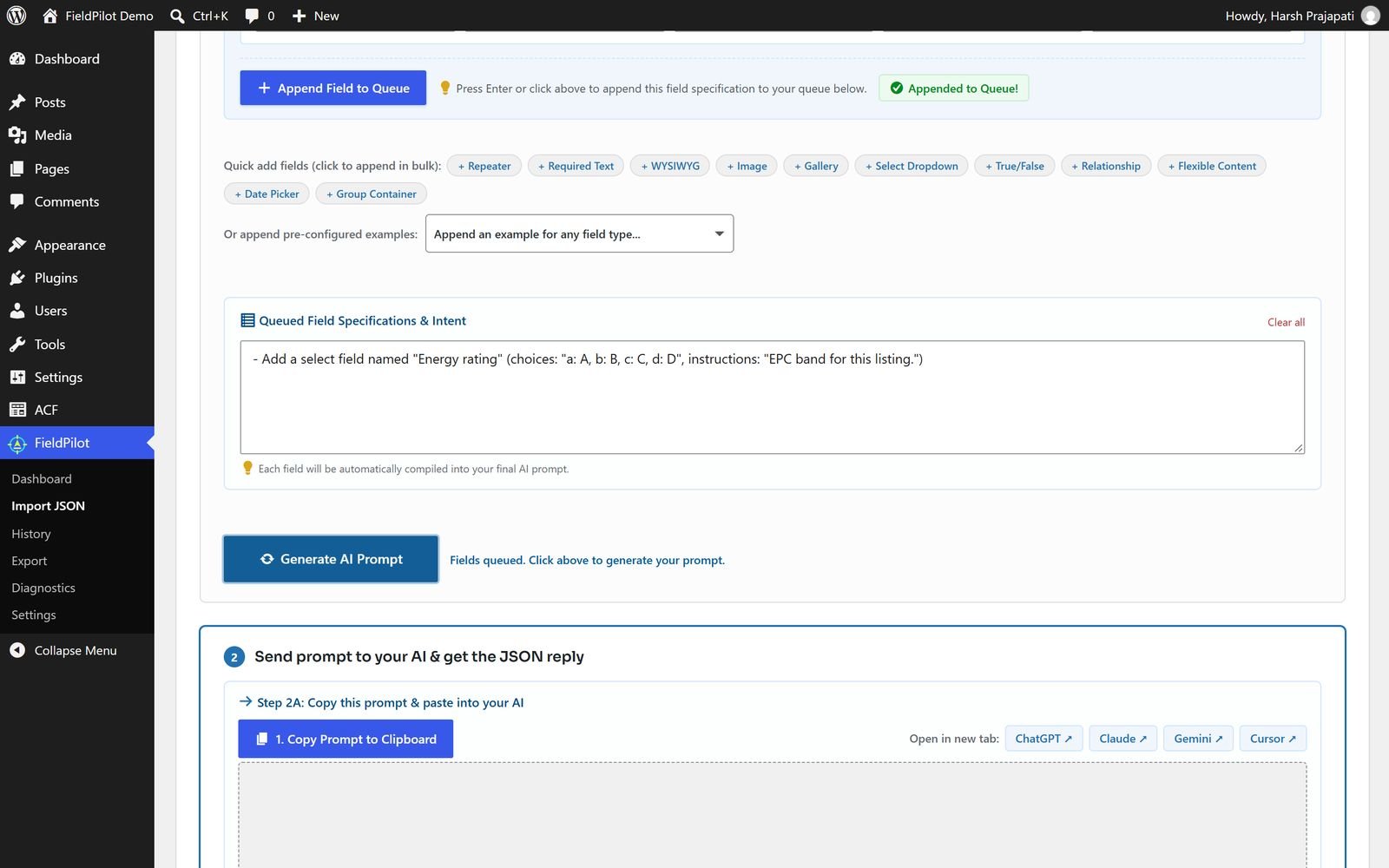
3. Copy the prompt and ask your AI
Click to copy the prompt. It includes your field group's current structure, so the AI stops inventing field names, and only the field types your ACF can store. Paste it into whichever AI you already use and copy the JSON it returns.
4. Paste the JSON and review the diff
Paste the reply back into FieldPilot. It reads sloppy AI output too, such as group instead of field_group or true where ACF wants 1, and fixes it for you instead of rejecting it. A native ACF export works as well.
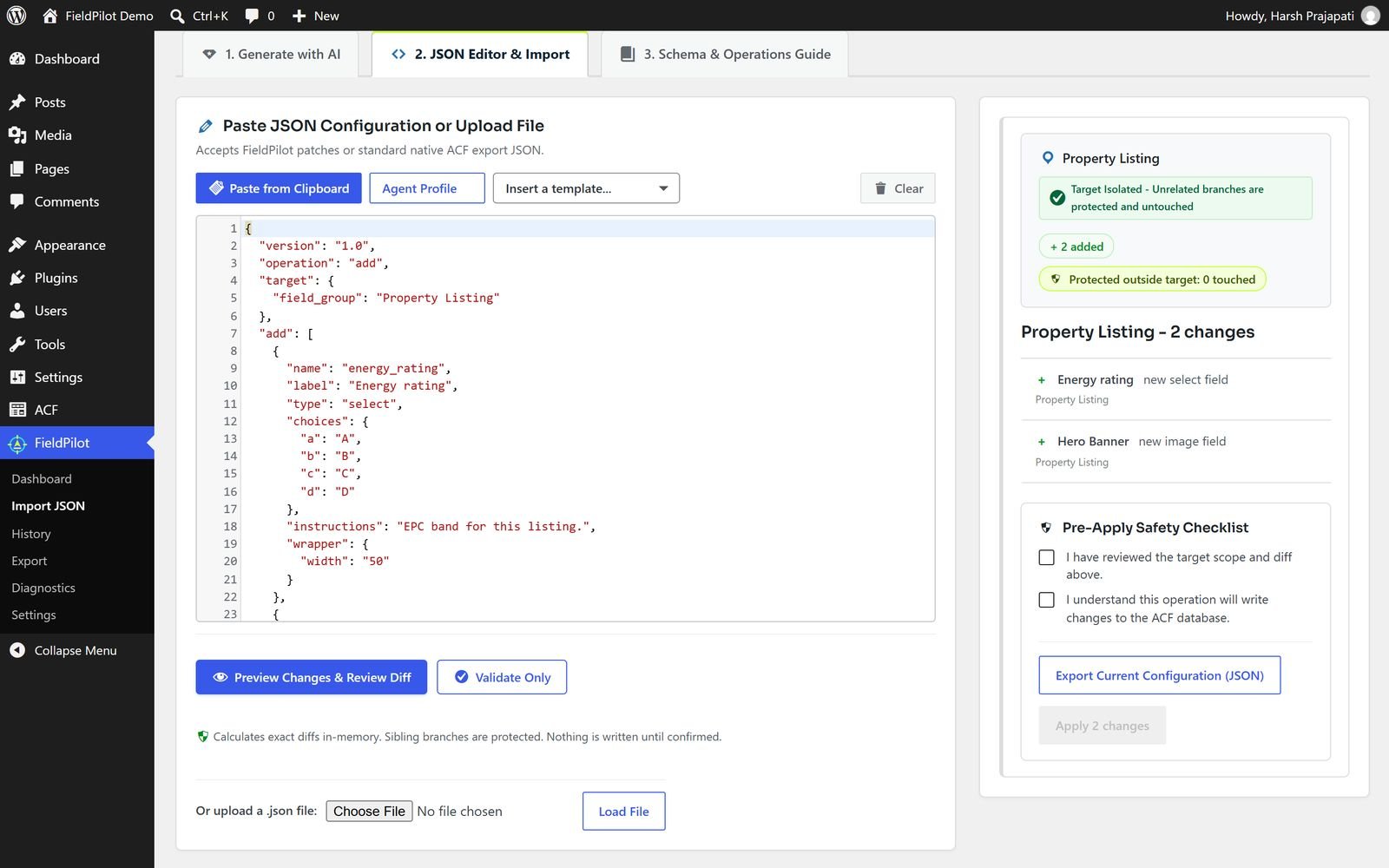
The preview shows every change before anything is written: what is added, removed or moved, and every setting that differs, old value to new. When you aim at a nested target, such as a repeater sub-field or a flexible content layout, changes stay inside that target.
5. Apply, and roll back if needed
Click apply. AI output can still be wrong, so read the comparison before you apply. FieldPilot saves a snapshot of the batch before the first write, then re-reads what was saved: the requested changes must be there and every other field must be unchanged. If not, it restores the snapshot automatically and tells you what happened. Any past change can be rolled back from the History screen, newest first.
Safety features that matter on live sites
Field changes are risky on a site where editors have already entered content, so FieldPilot stops and asks instead of guessing.
- Conflict detection. Changing a field's type, renaming a field that holds content or deleting something with data in it each stops with the trade-offs spelled out: keep, replace or duplicate.
- Content scan before delete. It looks for stored values, including values inside repeaters, before a delete, and asks for explicit confirmation.
- Field keys are never regenerated by an update, so no existing content is orphaned.
- Your data, your call. Nothing is removed when you delete the plugin unless you ask for it in Settings, and field groups are never touched.
AI without an AI dependency
FieldPilot contains no AI integration at all. It publishes a schema and generates a prompt, and you use whatever AI you already pay for. That means no API keys, no per-seat model cost, no site data leaving your server and no vendor lock-in. It works with zero configuration and keeps working when a provider changes its pricing.
For teams that deploy with scripts, FieldPilot also has a REST API and WP-CLI commands to validate, preview, apply, roll back, export, create field groups and generate prompts. Commands that write need a user, and a batch with destructive changes also needs --confirm:
wp acfjp apply patch.json --user=adminIf you want AI built into your site's own workflows rather than your field setup, see our WordPress AI integration service. For field structures, custom blocks and data models built for you, see ACF development.
FieldPilot has two siblings, also free on WordPress.org: MenuNest, for building big WordPress menus without dragging, and BoxMetric, a moving volume calculator for movers. When none of them fits, we build custom WordPress plugins.
Frequently asked questions
Will FieldPilot overwrite my existing fields?
No. An update changes only the settings your JSON names. Every other setting and every other field is left as it was, and field keys are never regenerated, so no content is orphaned.
Does it work with ACF free?
Yes, with the 32 field types ACF free provides. Repeater, Flexible Content, Clone and Gallery are ACF PRO features, so FieldPilot shows them disabled and refuses files that use them.
Does it need an API key?
No. The plugin never calls a language model. It generates prompts for the AI you already use, and you paste the reply back yourself.
Can I use it from WP-CLI?
Yes. Commands that write need a user, for example wp acfjp apply patch.json --user=admin, and a batch with destructive changes also needs --confirm. Run wp help acfjp for the full list.
Sources
The facts in this article were checked against these pages, last reviewed 15 November 2026.
- FieldPilot: AI & JSON Copilot for ACF, WordPress.orgwordpress.org/plugins/fieldpilot-for-acf/
- FieldPilot source code, GitHubgithub.com/xaviermsd/fieldpilot-for-acf
- Advanced Custom Fields documentationadvancedcustomfields.com/resources/
- WP-CLI, the command line interface for WordPresswp-cli.org/